
Melrick
-
Posts
12,359 -
Joined
-
Last visited
-
Days Won
192
Content Type
Profiles
Forums
Events
Everything posted by Melrick
-
35596
-

Adding new chapter a no-go or am I braindead this a.m.?
Melrick replied to a topic in Archive Tech Support
Just for anybody else having similar problems, here's FAQs on how to add a chapter and how to edit or delete a chapter. -
We do not allow the distribution of stories that have been removed, for any reason. You can read more in the FAQ here.
-
35594
-
35592
-
35590
-
35588
-
35586
-
35584
-
35582
-
35580
-
35578
-
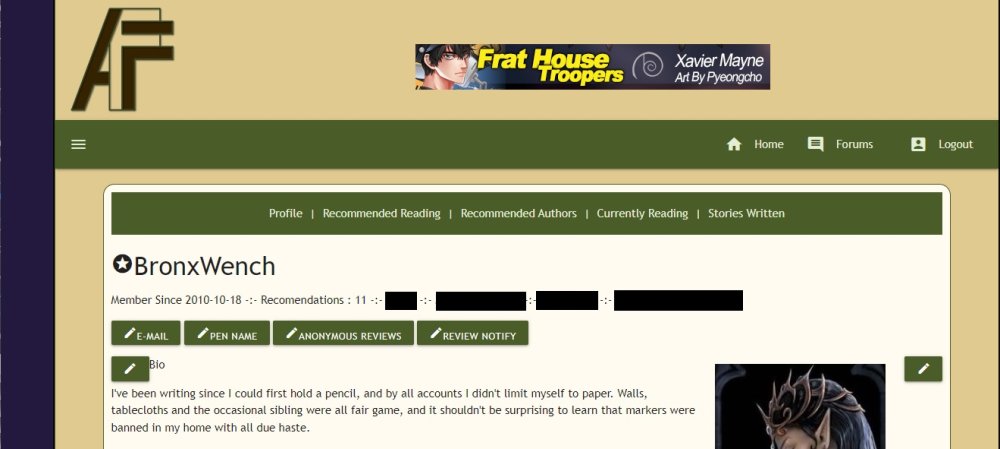
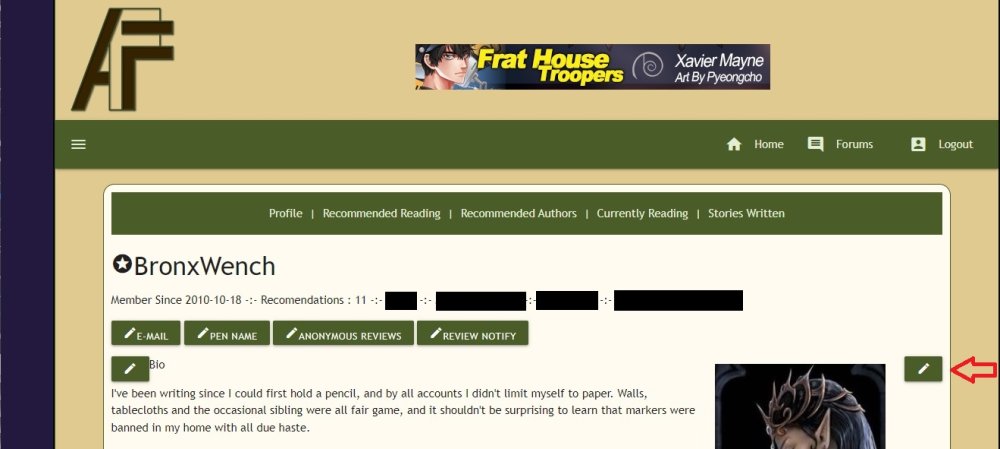
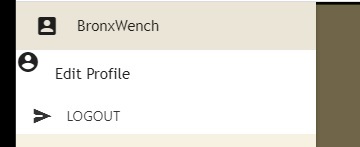
Allow or disallow review notifications Whether you wish to stop getting emails notifying you of new reviews for your stories, or if you had disabled it in the past and now wish to re-enable then this is how you do it: Ensure you're logged in to the archive. Then click the three bars at the upper left corner, and click on your username. A drop-down menu will appear. Click on “Edit Profile” to be taken to this page: Click “Review Notify” and select “Yes” or “No” from the field that will appear at the bottom of the Profile page. Click the “update” button. And that's it!
-
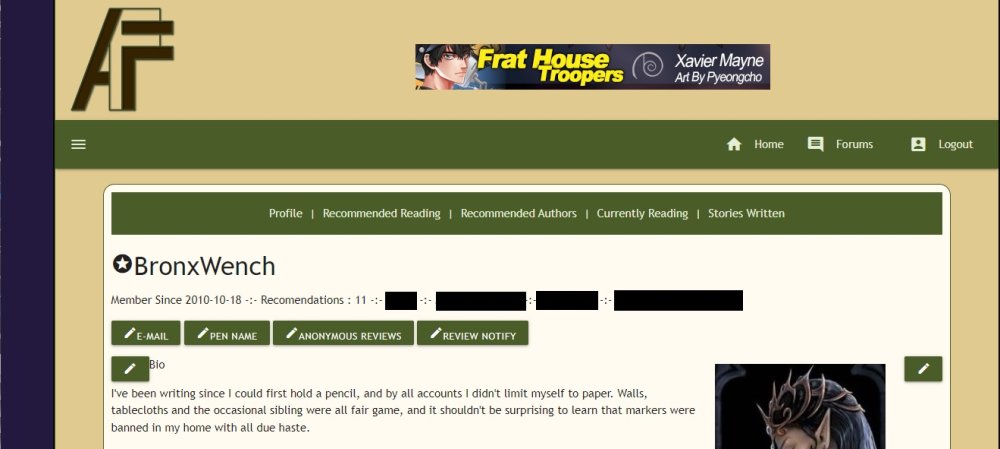
Allow or disallow anonymous reviews If you get trolled by registered authors leaving abusive reviews then we can warn or ban that author. But if you've been getting trolled by idiots leaving abusive anonymous reviews then there's actually little we can do. But there is something you can do – apart from simply deleting the reviews – and that's to no longer allow anonymous reviews. Here's how you change that. Ensure you're logged in to the archive. Then click the three bars at the upper left corner, and click on your username. A drop-down menu will appear. Click on “Edit Profile” to be taken to this page: Find “Anonymous Reviews” and select “Yes” or “No” from the field that will appear at the bottom of the Profile page. Click the “update” button. And that's it!
-
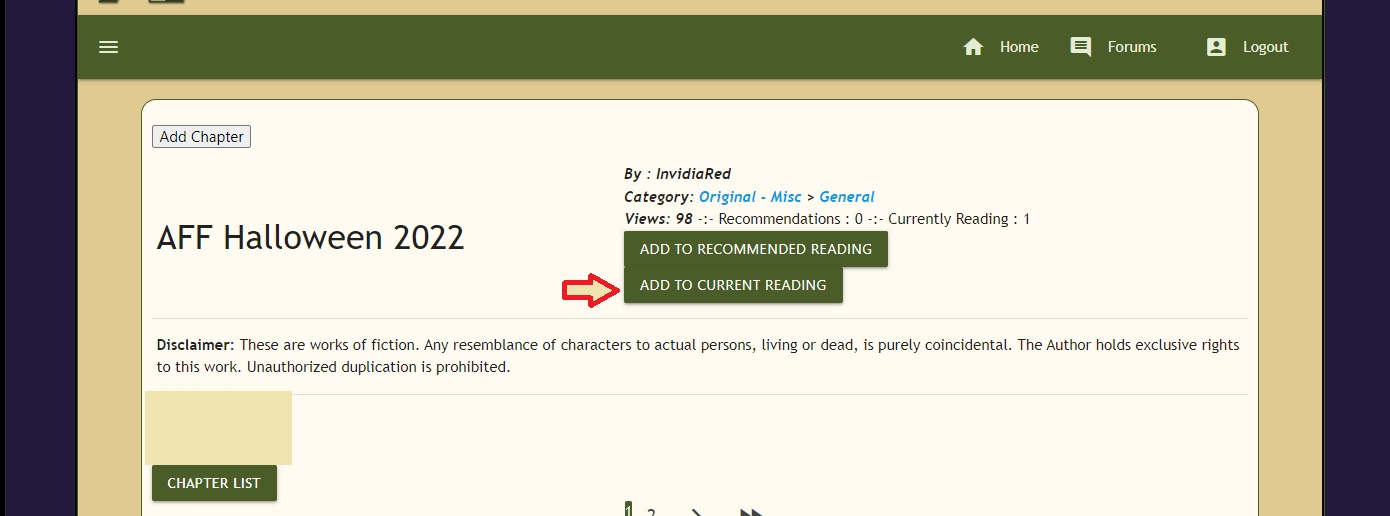
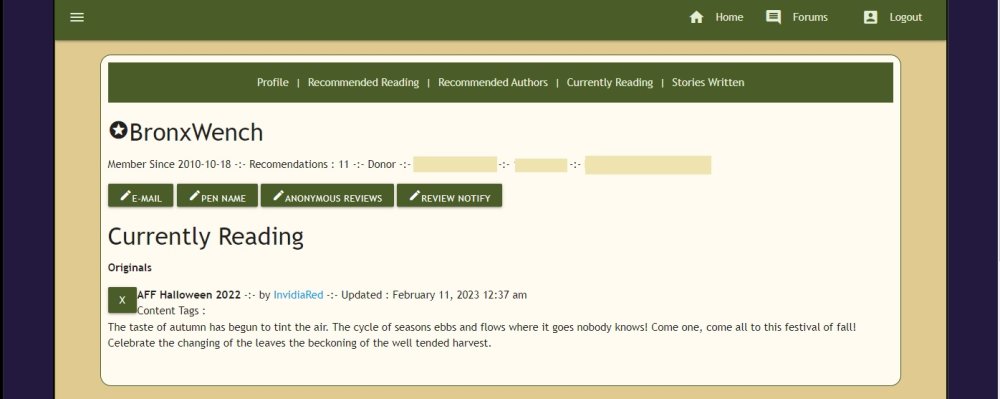
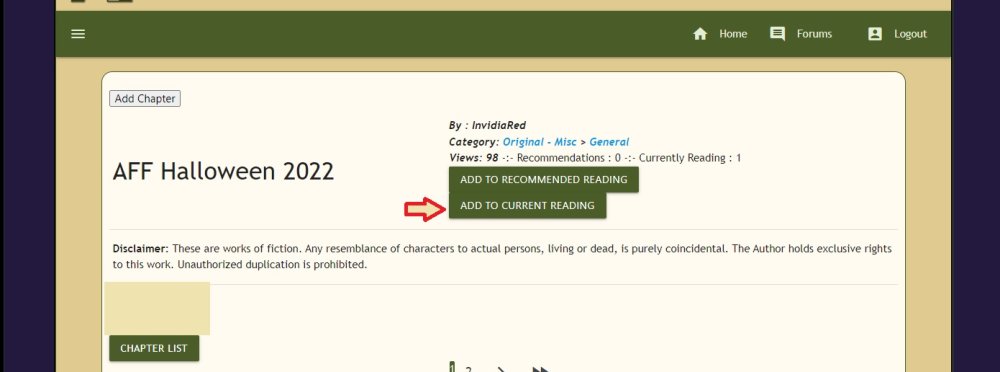
How to manage your current reading list Adding a story to your list Ensure you're logged in to the archive. Open the story you want to add to your Currently Reading list. You will see a clickable button marked ADD TO CURRENT READING. Press that button, and you're done! Managing the Current Reading list Go to your profile and click on Currently Reading from the top of your profile page. When the new page loads, you'll find a list of the stories you're currently reading, along with an "X" button to remove any story on your list. Have fun!
-
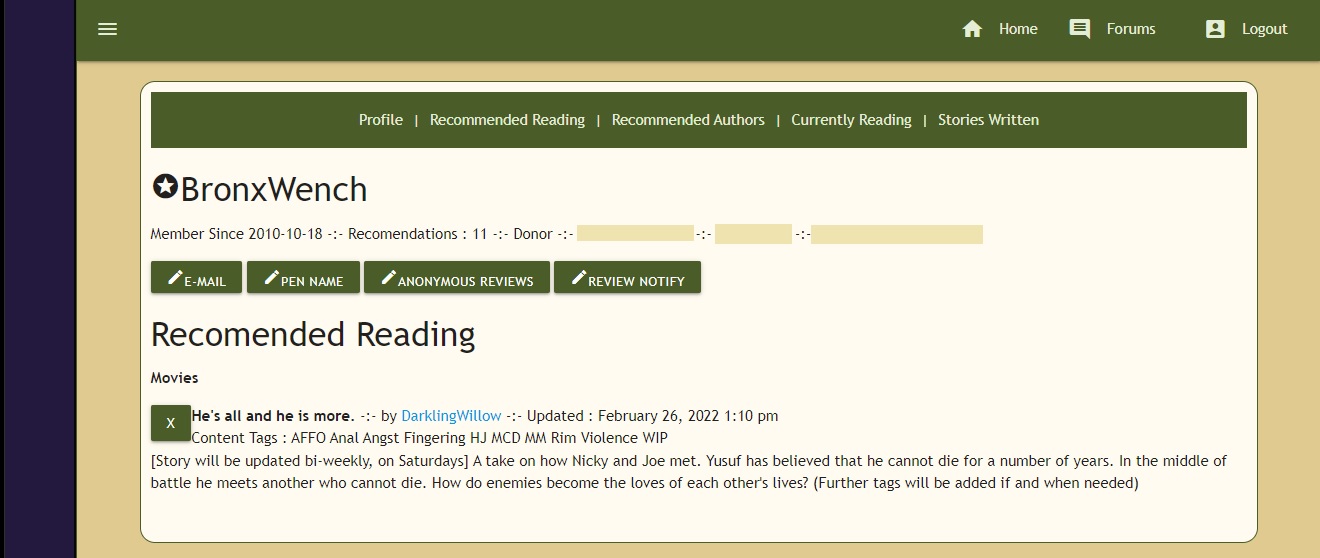
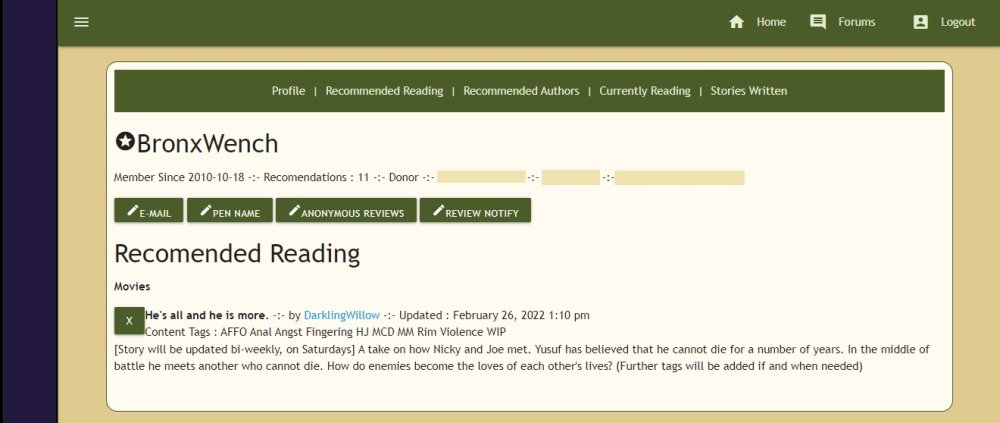
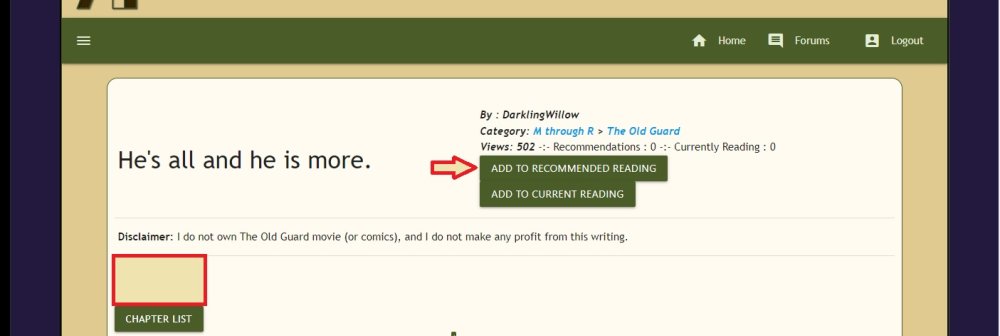
How to manage your recommended reading list Adding a story to your list Ensure you're logged in to the archive. Open the story you want to add to your Recommended Reading list. You will see a clickable button marked ADD TO RECOMMENDED READING. Click the “Add to Recommended Reading” button down the bottom, and you're done! Managing the Recommended Reading list Go to your profile and click on Recommended Reading from the top of your profile page. When the new page loads, you'll find a list of the stories you've recommended, along with an "X" button to remove any story on your list. Have fun!
-
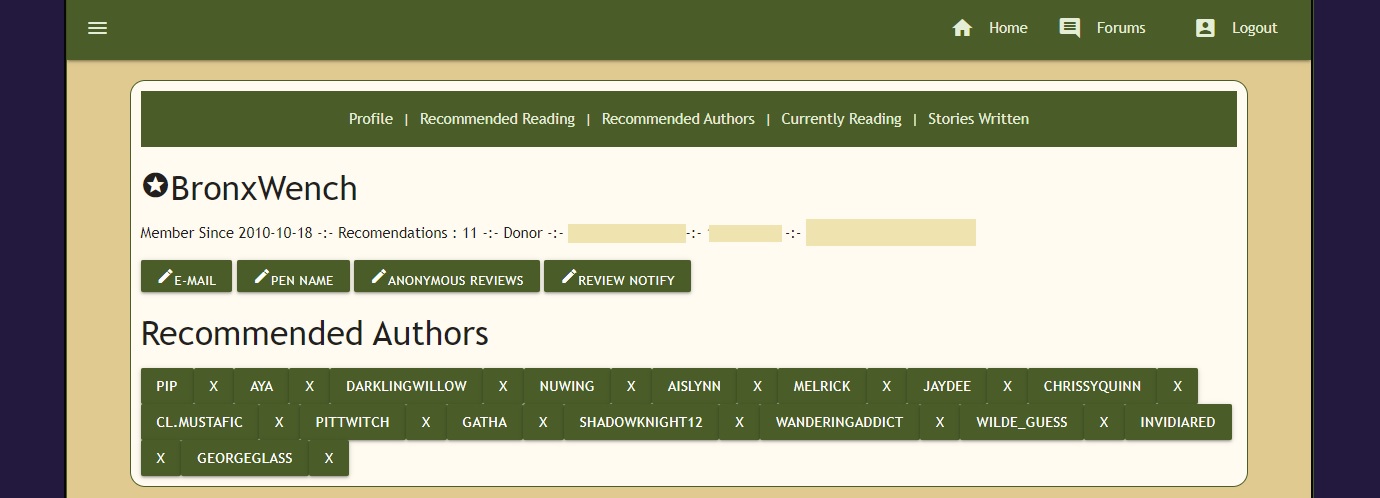
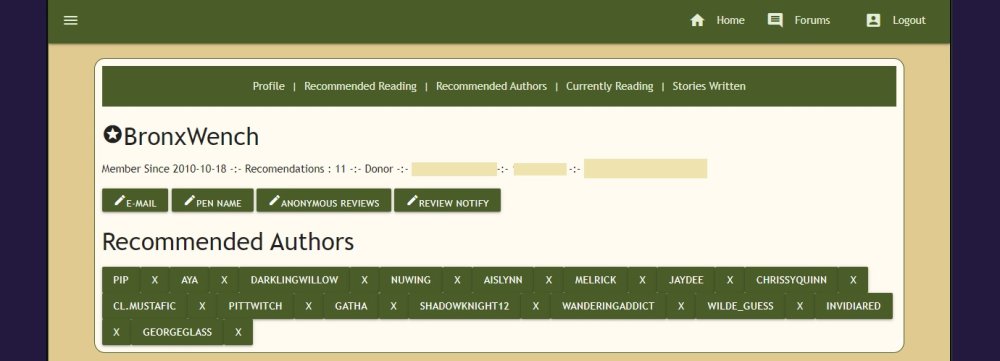
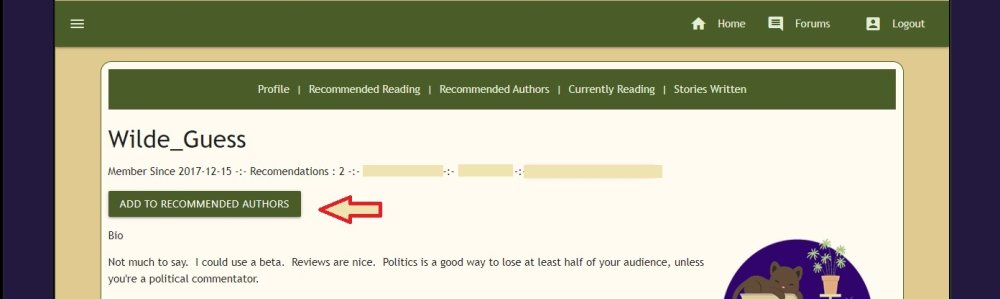
How to manage your recommended authors list Adding authors to your list Ensure you're logged in to the archive. Open the profile page of the author you want to recommend. Click the button marked ADD TO RECOMMENDED AUTHORS, and that’s it! Editing your recommended authors list Go to your profile and click on Recommended Authors from the top of your profile page. When the new page loads, you'll find a list of the authors you're recommending, along with an "X" button to remove any author on your list. Have fun!
-
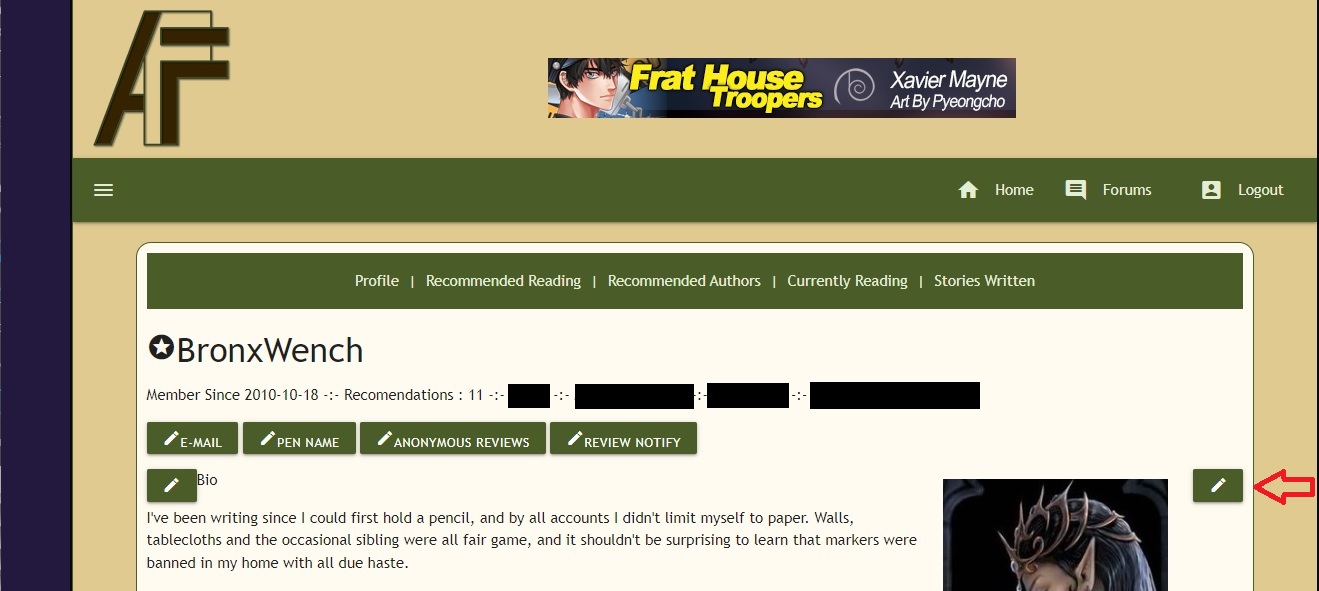
How to add or change your avatar Ensure you're logged in to the archive. Then click your username, and click Edit Profile. Next to the space for the avatar, there is a little pencil icon. Click that to edit the image. From the new page, you need to add the url for where the avatar is being hosted down at the very bottom of the page, in the field provided. Remember, the avatar needs to be 250x250px.
-
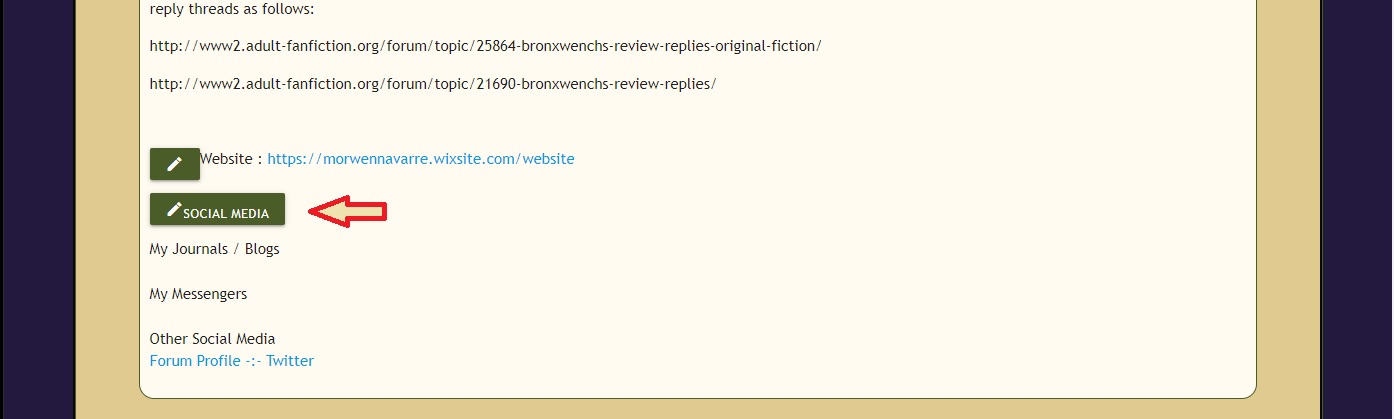
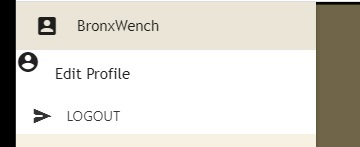
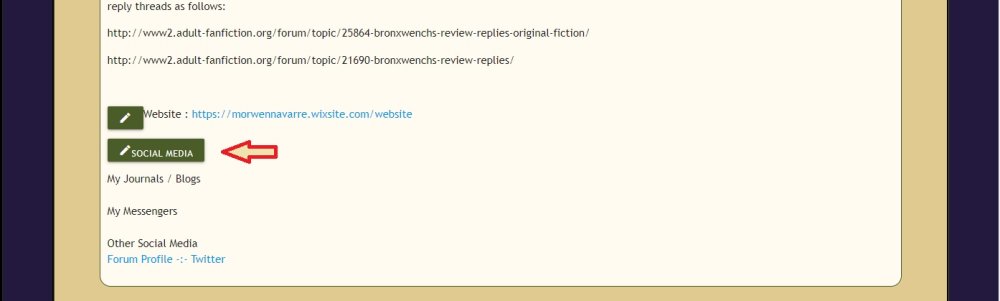
How to setup or change your social media links Ensure you're logged in to the archive. Then click your username, and then click Edit Profile. At the bottom of the page, you will see a button for Social Media. Click that button. At the bottom of the page, you will now see fields for you to enter the urls for your social media sites. PLEASE NOTE; We do not allow links to Patreon, GoFundMe, Etsy, Amazon.com or any other fund-raising sites or revenue producing sites as that constitutes advertising, or creates legal issues involving fan fiction and profit.
-
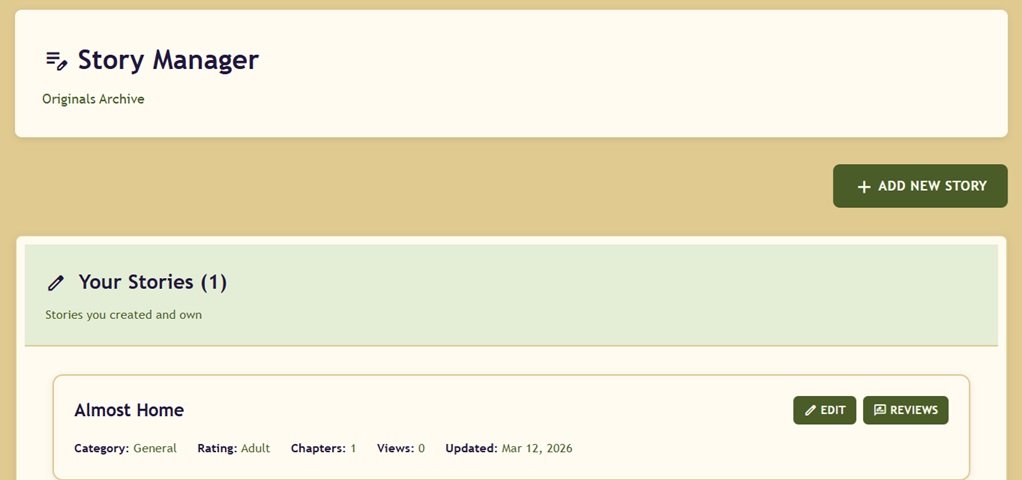
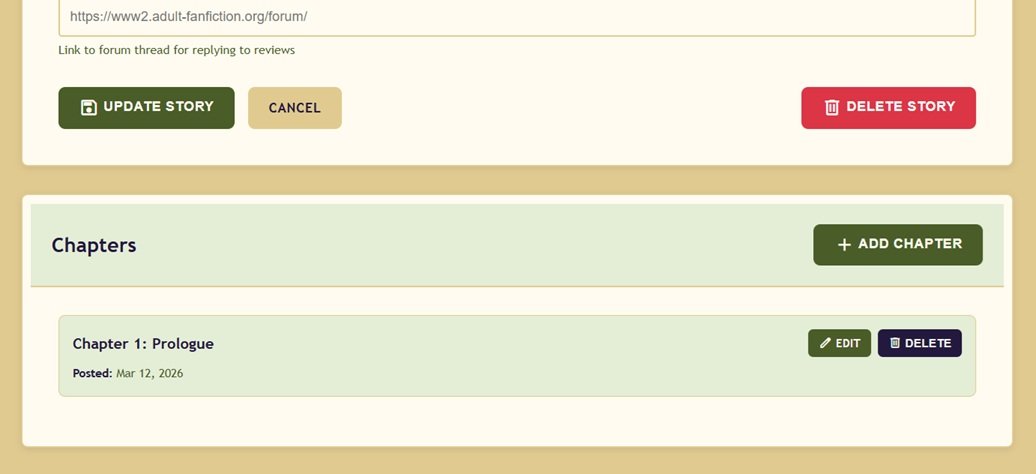
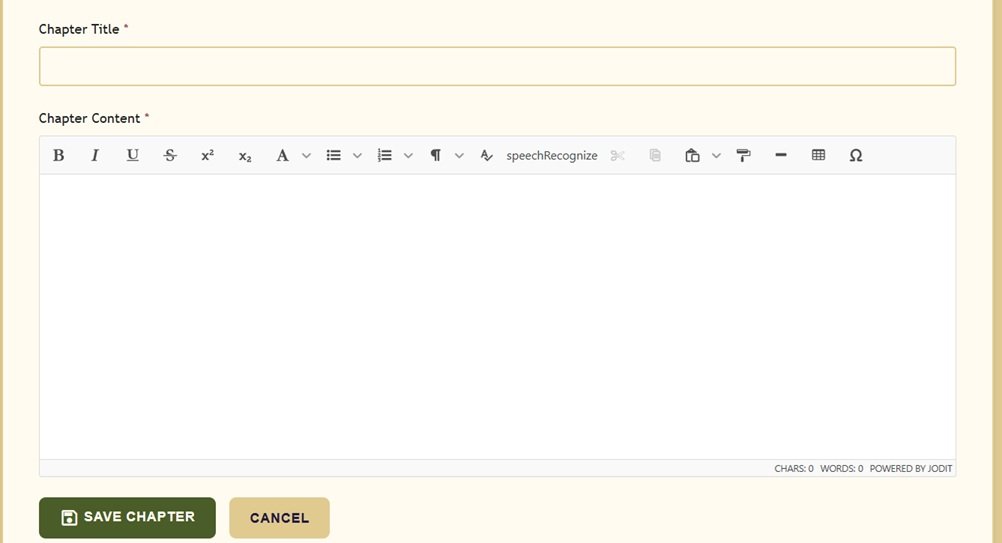
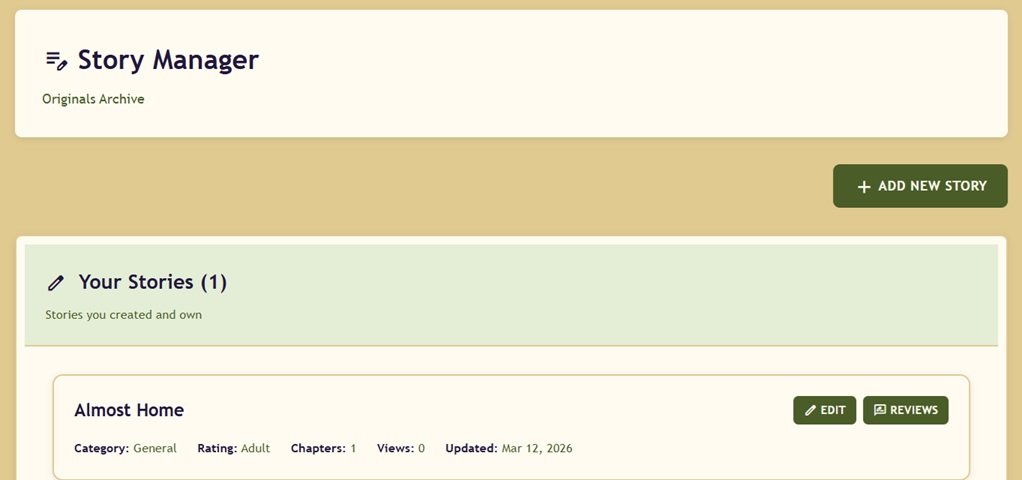
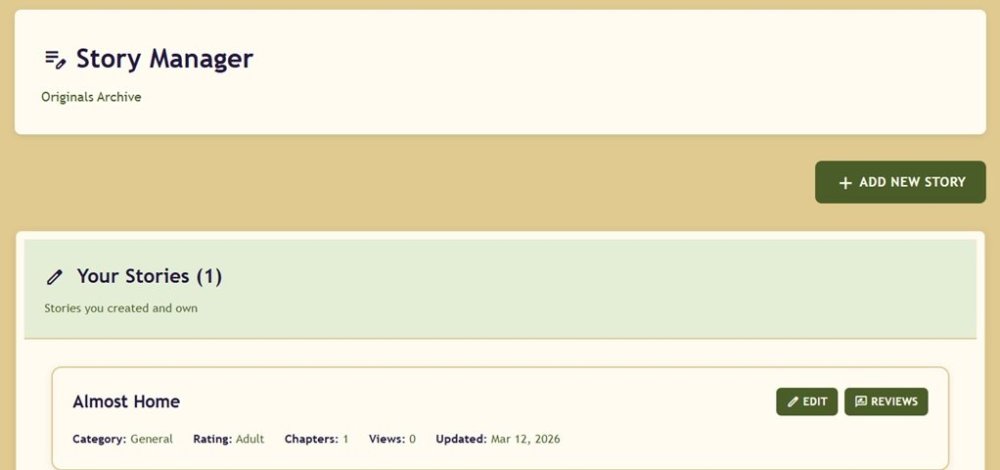
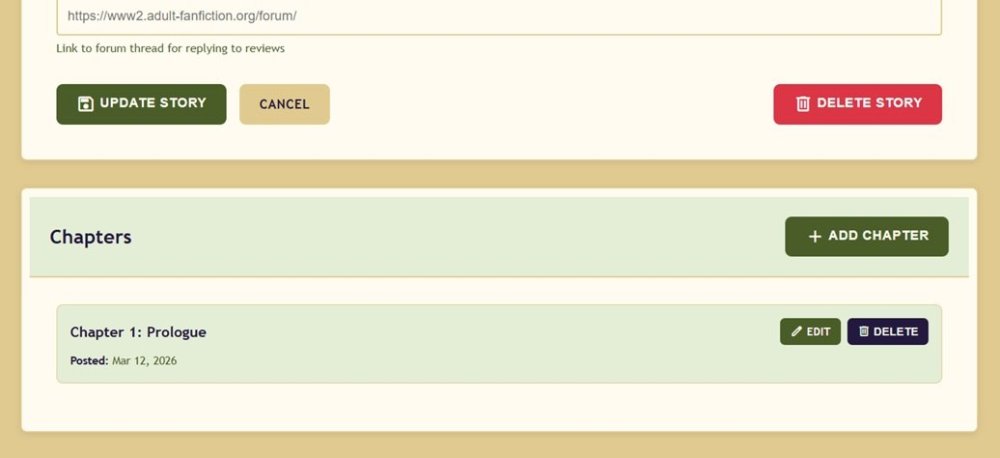
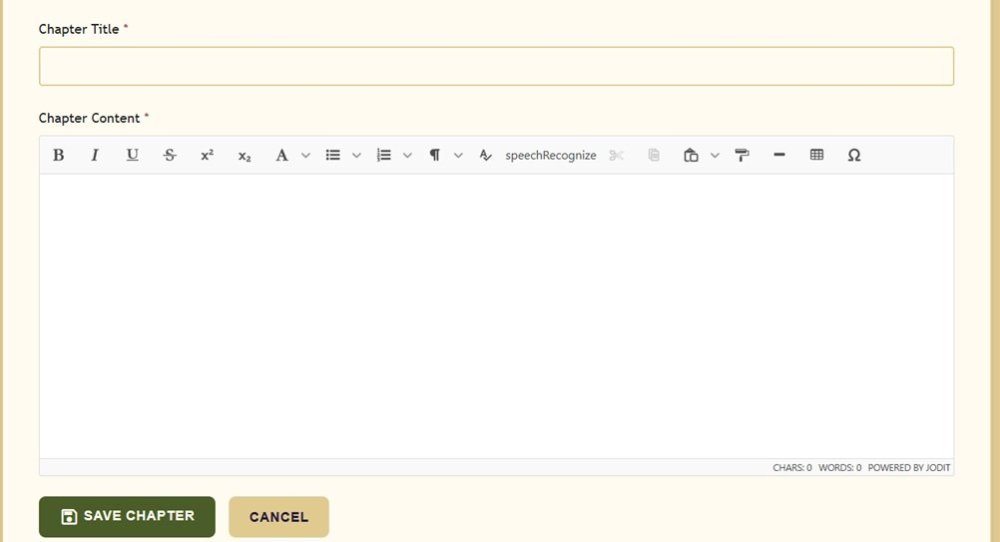
How do I edit or delete a chapter? The processes are very similar to adding a new story. Ensure you're logged in to the archive. Then navigate to the Story Manager in the desired archive. A new screen will load showing you all the stories you've uploaded to that category. Find the story that you wish to edit, and click the green EDIT link to the right: This brings you to the same screen as when you created the story. Scroll down, until you see the following: Clicking the EDIT link to the right of the already-posted chapter will let you edit that chapter. Remember to save your changes! Clicking the DELETE link to the right will delete that chapter. And clicking the red DELETE STORY link will delete the entire story. Please keep in mind that once a story is deleted, it is not recoverable. It is permanently removed from the archive, so please make sure you have a copy saved elsewhere. The + ADD CHAPTER link allows you to add another chapter to the story. The process is exactly the same as when you added the first chapter. You are brought to the editor screen: Title your chapter, add in the chapter text, and then click the link to SAVE CHAPTER.
-
- 4
-

-
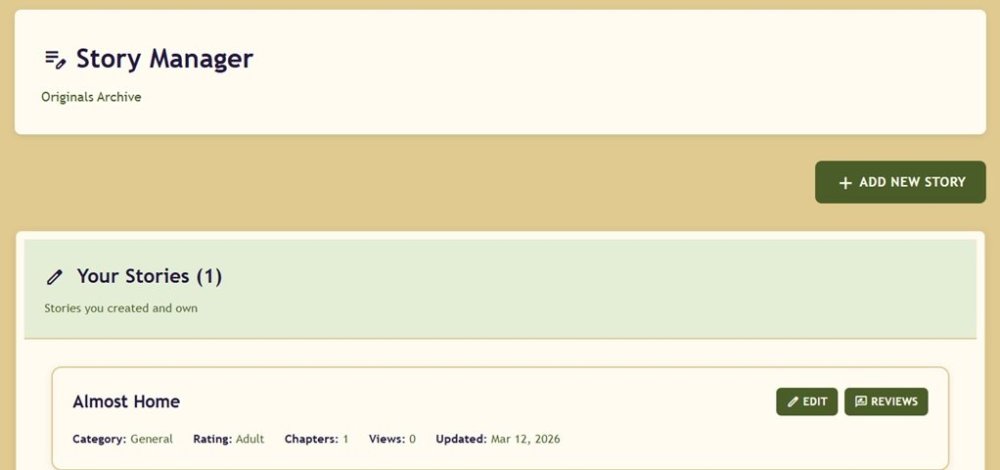
How do I edit my story info? Do you want to rewrite a story summary? Fix up the disclaimer? Perhaps add some more content tags? There's an easy way to do it. Just follow these steps. The processes are very similar to adding a new story. Ensure you're logged in to the archive. Then navigate to the Story Manager in the desired archive. A new screen will load showing you all the stories you've uploaded to that archive. Find the story that you wish to edit, and click the green EDIT link to the right: This brings you to the same screen as when you created the story. You can now edit your story information, including the title, the disclaimer, the summary, and you can add tags as well. You can even, if you posted the story to the wrong sub-category, move your story around within the archive. When you are finished, click the UPDATE STORY link to save your changes.
-
- 2
-
-
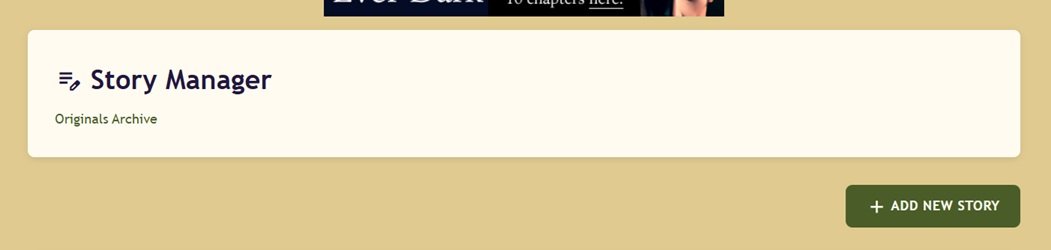
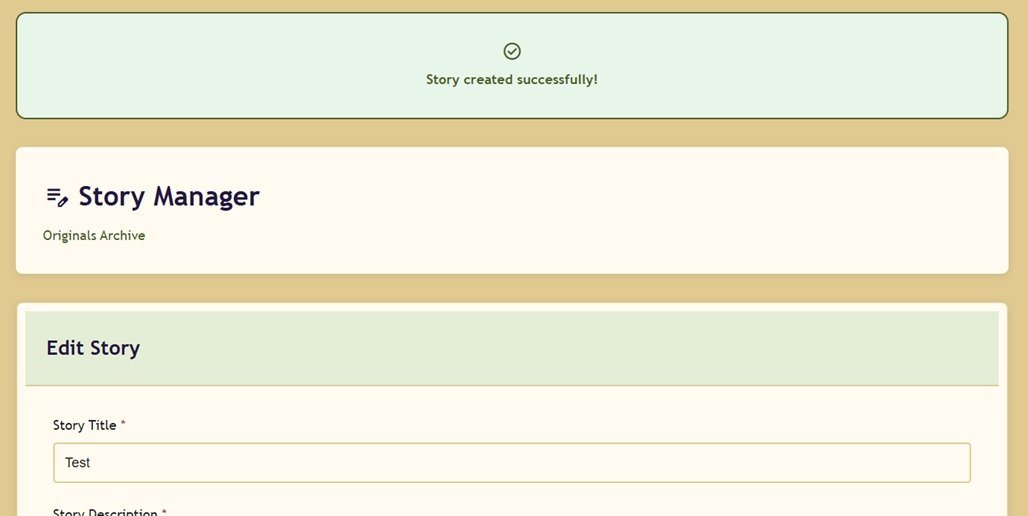
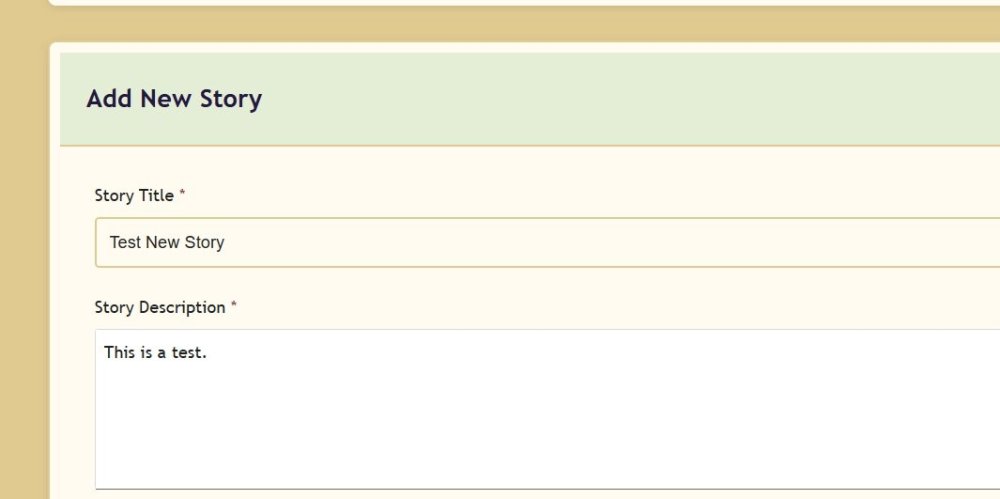
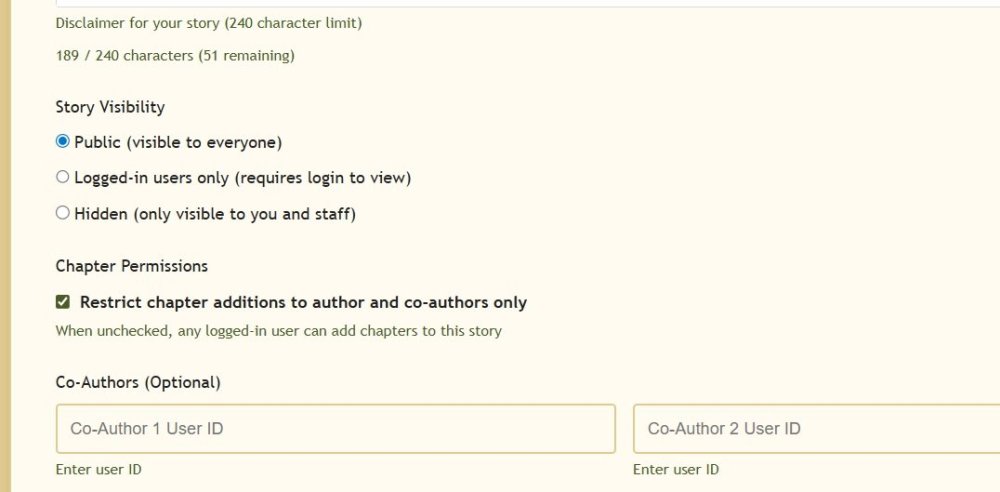
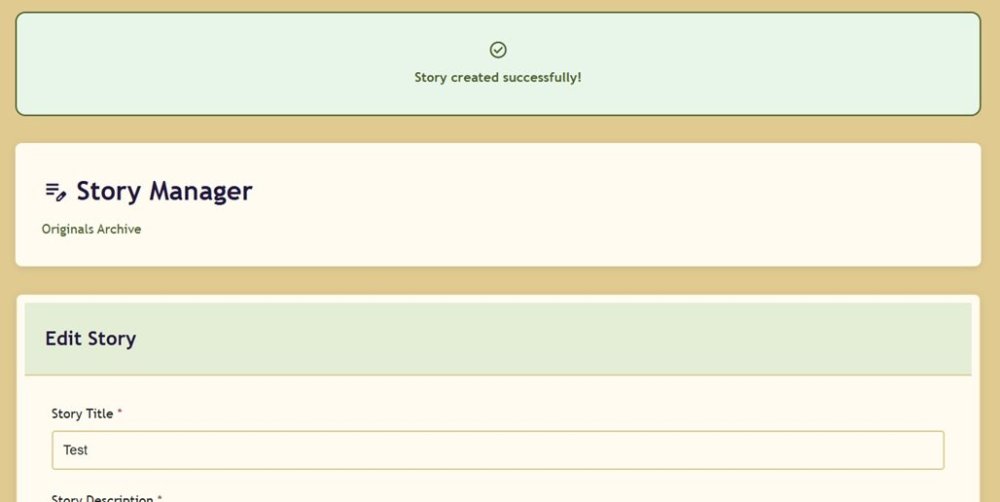
How do I upload a story in the archive? The first thing you need to do is to ensure you're logged in. Use the dropdown menus to find the correct archive for your story. There is a dropdown for Original Writing, and one for FanFiction, which has submenus for the various sub-archives. Each archive will have an option for the Story Manager for that archive. Click on the Story Manager, and you will see a link to ADD NEW STORY: When you click on the icon to the right of the subdomain you want, it’ll take you to a new page, where you can begin to add all the relevant information regarding your story, such as title, summary, disclaimer, etc, as well as content tags. It is very important that you choose all the appropriate tags relevant to your story. Start with the title and description/summary: Then select the story rating from the dropdown, and start clicking checkboxes for all story tags: Then add in your disclaimer, and choose whether or not your story is publicly available, whether other members can add chapters, and add co-authors if you have them. You can also link to your review reply thread on the forum, and to any story discussion thread on the forum: Now you click the CREATE STORY link, which will bring you here: Scroll down, and you will come to this: Click on the ADD CHAPTER link, and you will be brought here: Title your chapter, add in the chapter text, and then click the link to SAVE CHAPTER. And there you are, your first chapter of your new story uploaded.





-
- 2
-
-
35576
-
35574
-
35572