With the previous versions of the forum software, you were able to see everyone’s status updates quite easily, but now with the new version, they’ve done a fine job of burying this information.
Yes, I know it was better the way it was. No, I don’t know why they thought this was an improvement. No, we can’t go back to the previous version.
And with that out of the way, I’m here to tell you how you can still see everyone’s status updates.
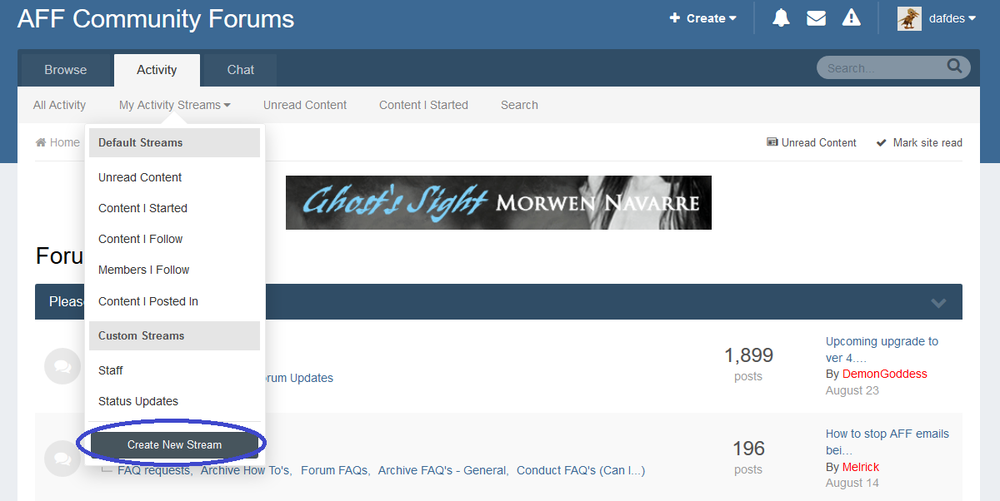
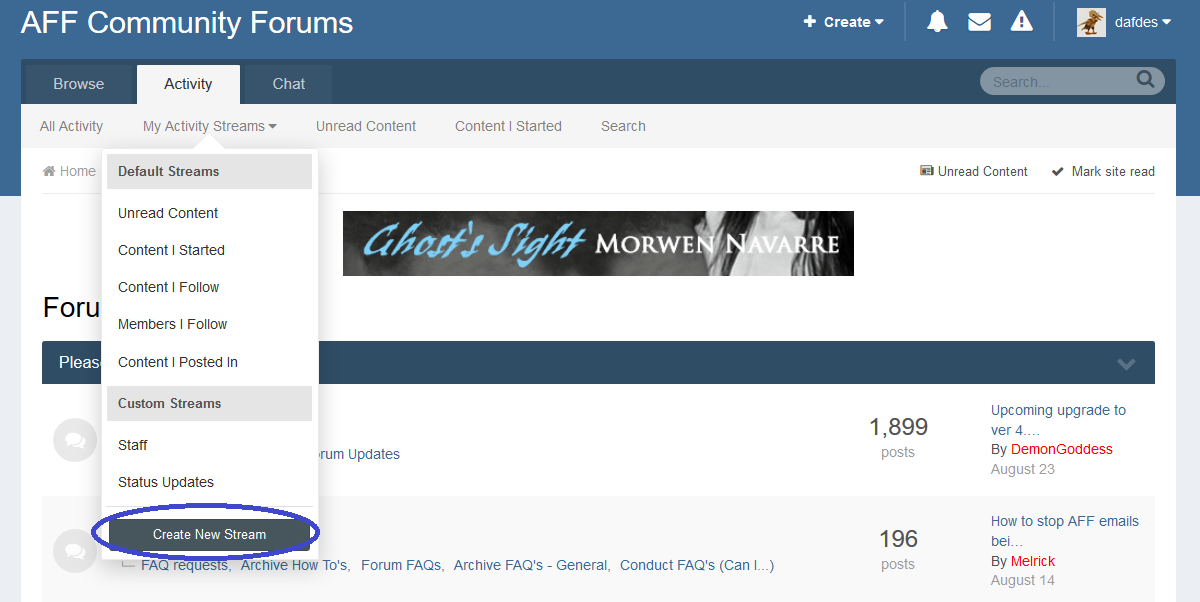
The first step is to mouse over the “Activity” tab up the top. Click “My Activity Streams” just below it. A drop-down menu will appear. Go down to the list until you see “Create New Stream”. Click that.
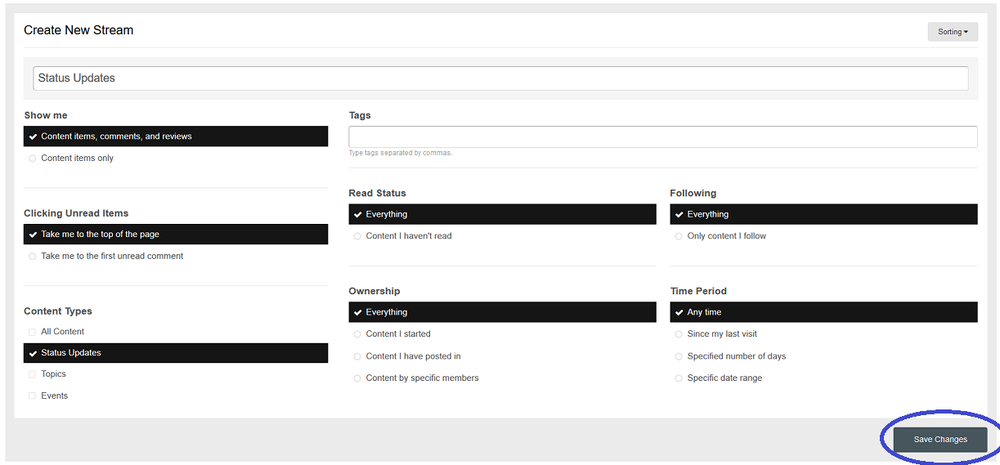
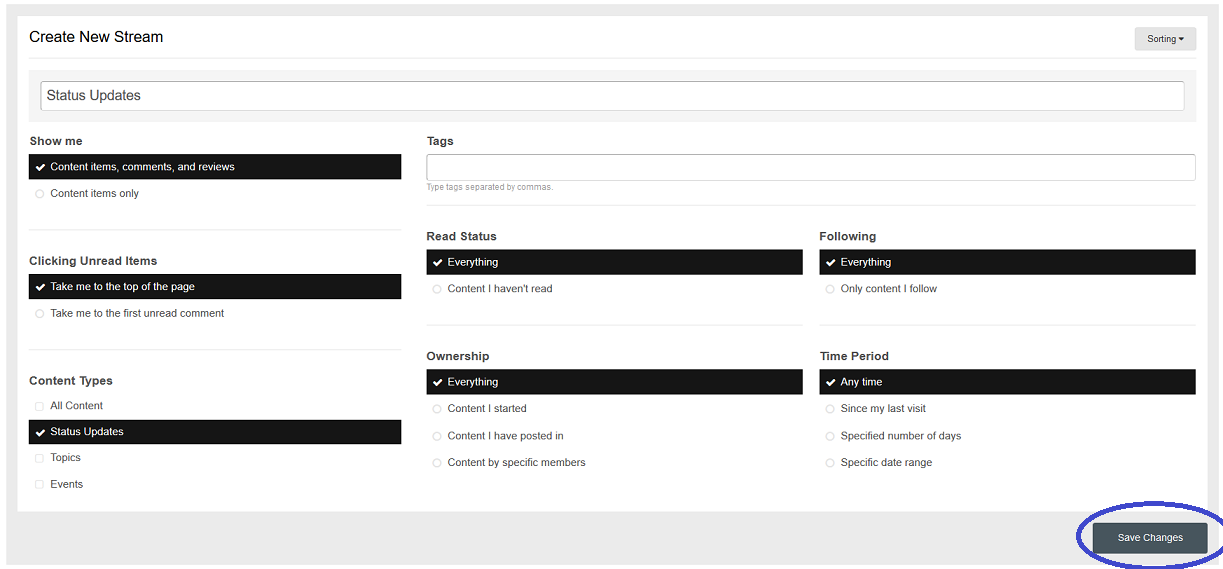
On the page that loads next, enter a name where it says “Stream Title”. My recommendation would be “Status Updates” but you can name it whatever you wish. Just make sure you understand what it is. Take a look at the picture below to see what options you need to select. The critical one is the “Content Types” options. Make sure you tick the “Status Updates” option. Once that’s done, click the “Save Changes” button.
From here on, when you want to view everyone’s status updates, mouse over the “Activity” tab up the top, click “My Activity Streams”, go down until you see “Custom Streams”. Below that will be “Status Updates” or whatever you named it. And there you have it!